
Automating Phishing Warnings in Exchange Online with Rewst
At Flownetic, we specialize in helping MSPs streamline repetitive Microsoft 365 administration through automation. One common pain point we’ve seen across tenants is the manual upkeep of Exchange Online transport rules especially when it comes to phishing warnings. Maintaining consistent banners across all users and tenants quickly becomes tedious and error-prone. That’s why we built a Rewst workflow that fully automates this process from start to finish.
This workflow was inspired by a great post from CyberDrain, where they demonstrated how to deploy spoofing warnings with PowerShell.
We took that same concept and translated it into a fully automated Rewst workflow, making it scalable, tenant-aware, and maintenance free.
What it does
At a high level, this workflow:
- Pulls all user mailboxes from Exchange Online.
- Generates a list of display names to monitor (excluding generic ones like Info, Sales, or Support).
- Retrieves all accepted domains in the tenant to avoid false positives.
- Builds a multilingual HTML phishing banner (Dutch or English).
- Automatically splits the list into chunks to respect Exchange rule limits.
- For each chunk, it creates or updates the corresponding transport rule with the correct configuration.
If a rule already exists, it’s updated. If not, it’s created. Either way, you end up with complete coverage fully automated.
Step-by-Step Breakdown
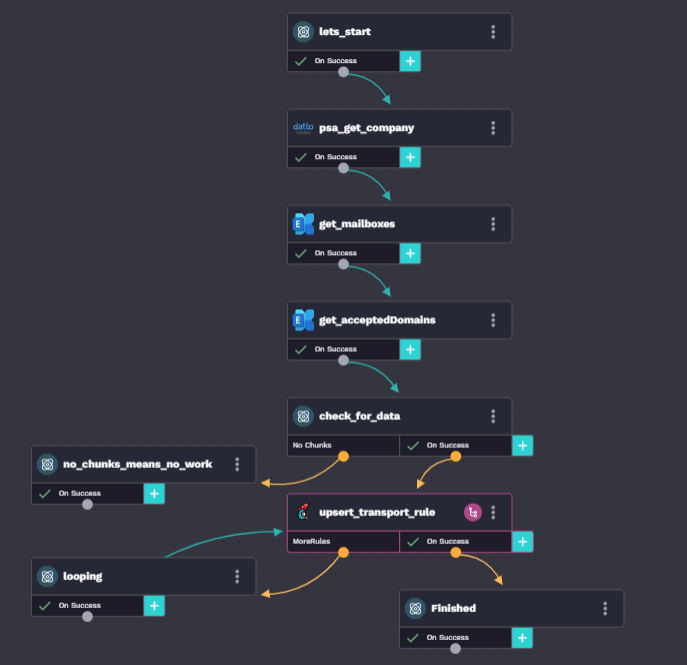
1. Retrieve Company Language Settings
The workflow starts by querying the company record from Datto PSA.
Based on the custom field “Primary language” , the workflow uses an English or Dutch version of the warning message; if not set it defaults to Dutch
2. Fetch User Mailboxes
Using the Get-Mailbox cmdlet from the Microsoft EXO pack, the workflow retrieves all user mailboxes.
It then sanitizes and filters the display names:
- Removes accents, symbols, and organization suffixes.
- Excludes generic shared mailboxes like Info, HR, Finance, etc.
The result is a clean list of real employee display names to match against.
3. Get Accepted Domains
Next, the workflow runs Get-AcceptedDomain to gather all verified domains in the tenant.
A few widely used public domains (like microsoft.com, google.com, linkedin.com, canva.com, monday.com) are automatically added to avoid false triggers from legitimate senders.
4. Construct the HTML Warning Banner
A multilingual HTML banner is dynamically built, embedding:
- The organization’s name (injected via Rewst context).
- Contact information for IT support.
- A clear visual warning with color coding.
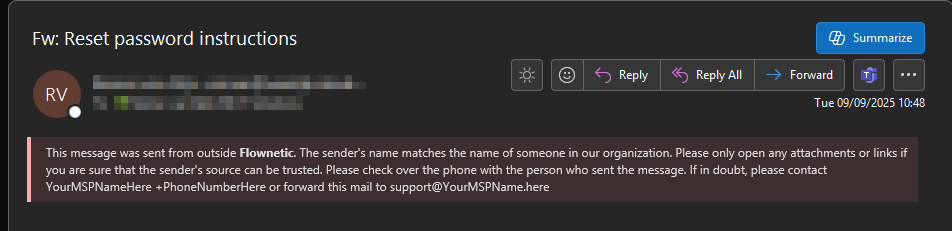
Example (English):
“This message was sent from outside the organization. The sender’s name matches someone inside your organization a common phishing tactic. Please verify the sender before interacting with links or attachments.”
5. Handle Exchange Rule Limits with Smart Chunking
Exchange transport rules have a text-size limit (~4,000 characters).
To work around this, the workflow dynamically splits the mailbox name list into smaller chunks using a Jinja-based loop that calculates length and groups entries intelligently.
Each chunk becomes its own rule, ensuring no data truncation or PowerShell failures.
6. Deploy the Rules Automatically
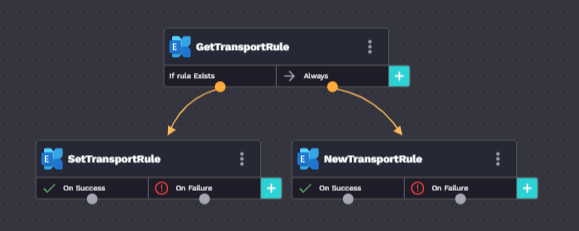
For each chunk, the sub-workflow Microsoft – Upsert Transport Rule is triggered.
It performs the following logic:
- Runs
Get-TransportRuleto check if a rule with the same name exists. - If found → runs
Set-TransportRuleto update it. - If not found → runs
New-TransportRuleto create it.
Each rule includes:
- A descriptive name (
Rewst - Phishing Warning, incremented for chunks) - “FromScope = NotInOrganization” condition
- “HeaderMatchesPatterns” with the name list
- “ExceptIfSenderDomainIs” for trusted domains
- “ApplyHtmlDisclaimerText” with the phishing banner (prepended)
7. Loop Until Completion
The process repeats for every chunk until all rules are deployed, after which the workflow exits gracefully leaving Exchange fully configured with the latest anti-impersonation rules.
Why It Matters
Impersonation-based phishing is one of the most effective social engineering tactics.
Attackers often use display names matching internal users to gain trust.
This automation ensures that users are visually warned before engaging with such emails all without relying on continuous manual intervention.
For MSPs, it means:
- Consistent protection across all tenants
- Automatic adaptation to mailbox changes
- Zero manual PowerShell management
- Reusable automation that scales
Summary
The Deploy Phishing Warning workflow is a powerful example of how Rewst can simplify and scale Microsoft 365 security management.
By combining Exchange Online PowerShell, Datto PSA integration, and Rewst’s Jinja logic, Flownetic provides MSPs with a self-maintaining defense layer that enhances user security while saving hours of manual administration.
Inspired by CyberDrain’s PowerShell approach, this workflow takes the same principle and elevates it into a fully automated, multi-tenant solution built for the Rewst ecosystem.
Closing Thoughts
At Flownetic, our mission is to help MSPs get the most out of automation reducing repetitive admin tasks and building smarter, more consistent workflows across their stack.
If you’d like to implement this phishing warning automation or explore how we can tailor Rewst workflows to your environment, reach out to our team.
Let’s turn your processes into automation that actually scales.